
Applies to IRIS Manager | Guest Room | Guest Mobile | Guest Web | Mobile Dining When an item runs out, you can mark it as unavailable in Simphony. This is commonly known as 86ing an item.
If the Item Out-Of-Stock feature is enabled for your property, IRIS checks Simphony regularly (every 120 seconds by default) and automatically marks the item as Out of Stock in IRIS Manager and Guest Web. Guests will see an Out of Stock badge next to the item, and you don’t need to change anything in IRIS yourself.
TABLE OF CONTENTS
- Marking an item as out of stock
- Making an item available again
- Checking an item in IRIS Manager
- Frequently asked questions
- Related articles
Marking an item as out of stock
1. On a Simphony workstation, tap Func
2. Look for a function button typically called MI Availability (often found in the 'Manager' menu)
3. Select the item to make it unavailable
4. Tap Done to save
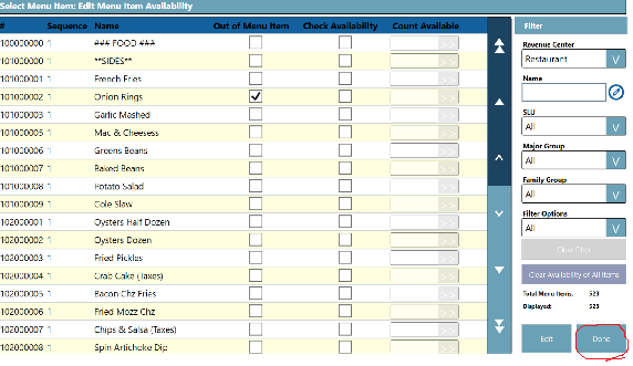
Within about 120 seconds, IRIS will mark the item as Out of Stock. Guests will see an Out of Stock badge next to the item.
Making an item available again
1. On a Simphony workstation, tap Func
2. Look for a function button typically called MI Availability (often found in the 'Manager' menu)
3. Unselect the item to make it available again
4. Tap Done to save
On the next check, IRIS removes the Out of Stock badge and guests can order the item again.
Remember to make items available again when they’re back in stock, otherwise they’ll stay off sale for guests.
Checking an item in IRIS Manager
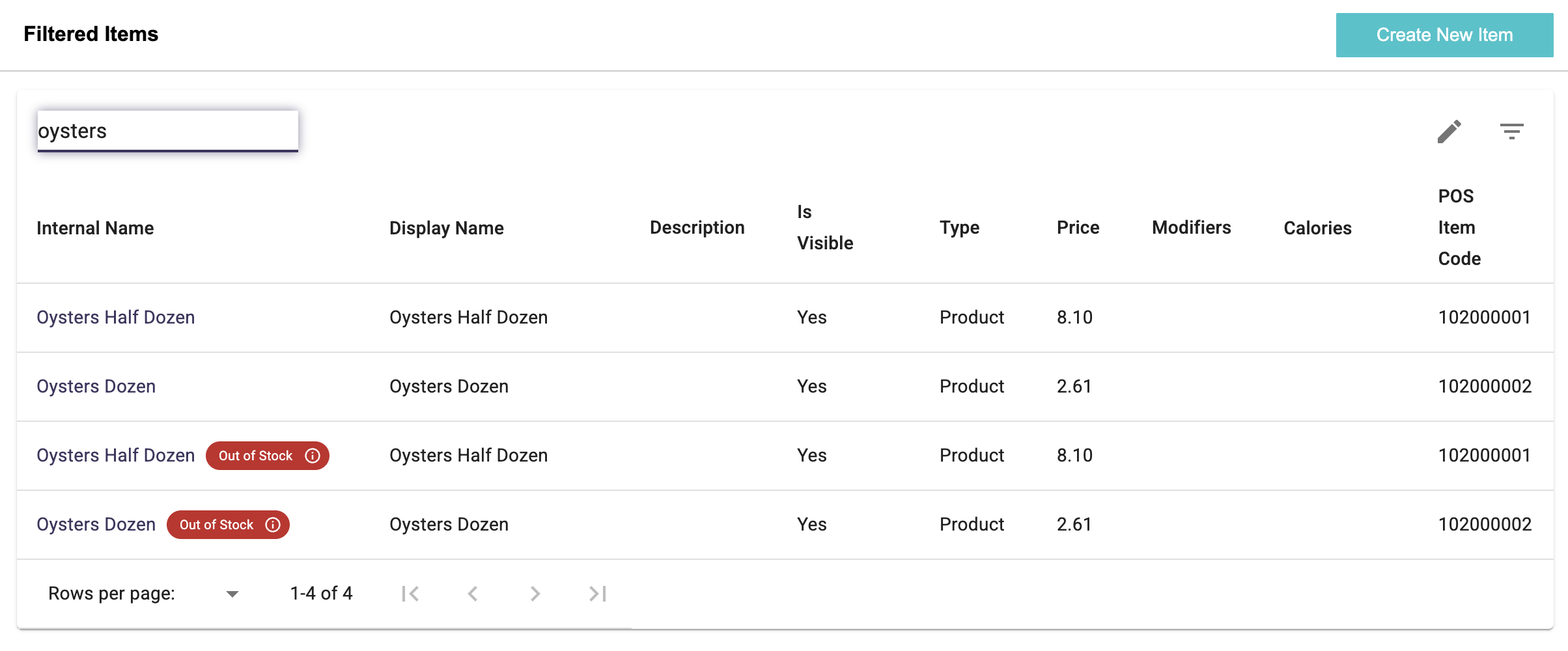
To see which items are out of stock, open the Items or Filtered Items page in IRIS Manager. Any out-of-stock item has a red Out of Stock badge next to its name.
Frequently asked questions
Do I need to change anything in IRIS Manager?
No. Once the feature is enabled, you only need to update the item in Simphony. IRIS picks up the change automatically.
How long does it take for IRIS to update?
Around 120 seconds by default. If you’ve just made the change, wait a moment and refresh the page.
I’ve marked an item as unavailable but it isn’t showing as out of stock in IRIS. What should I do?
Check you changed the right item in Simphony and saved it by tapping Done. Check the POS ID (#) in Simphony/EMC matches the POS ID in IRIS, as this is how the two are matched. Wait 30 seconds and refresh the page. If it still isn’t showing, raise a ticket with IRIS Support with the item name and the time you made the change.
How do I know if this feature is enabled for my property?
Please contact IRIS Support and we’ll check it for you. This feature is only available for properties using Simphony TS2.