
Applies to IRIS Manager | Guest Room | Guest Mobile | Guest Web | Mobile Dining Overview
An Advance Ordering Outlet lets your guests order items for delivery on a future date – days, weeks or even months ahead. It’s great for things like groceries before guests arrive, gifts, flowers, or in-room amenities for a special occasion.
It works just like an Order Outlet, with one key difference: guests choose a delivery date instead of a delivery time.
Order Outlets can also take future orders using Deliver Later, but only up to around a week ahead. With an Advance Ordering Outlet, you choose how far ahead guests can order – up to 366 days.
TABLE OF CONTENTS
- Overview
- How to create an Advance Ordering Outlet
- Lead times and how far ahead guests can order
- Ordering and delivery options
- Opening days and delivery times
- What your guests see
- Managing Advance Orders
- Frequently asked questions
- Related articles
How to create an Advance Ordering Outlet
1. Log in to IRIS Manager and go to your Property
2. Go to Setup > Outlet Settings
3. Click + Add New Outlet at the top of the page, or select an existing Outlet
4. Add a Name and a Description
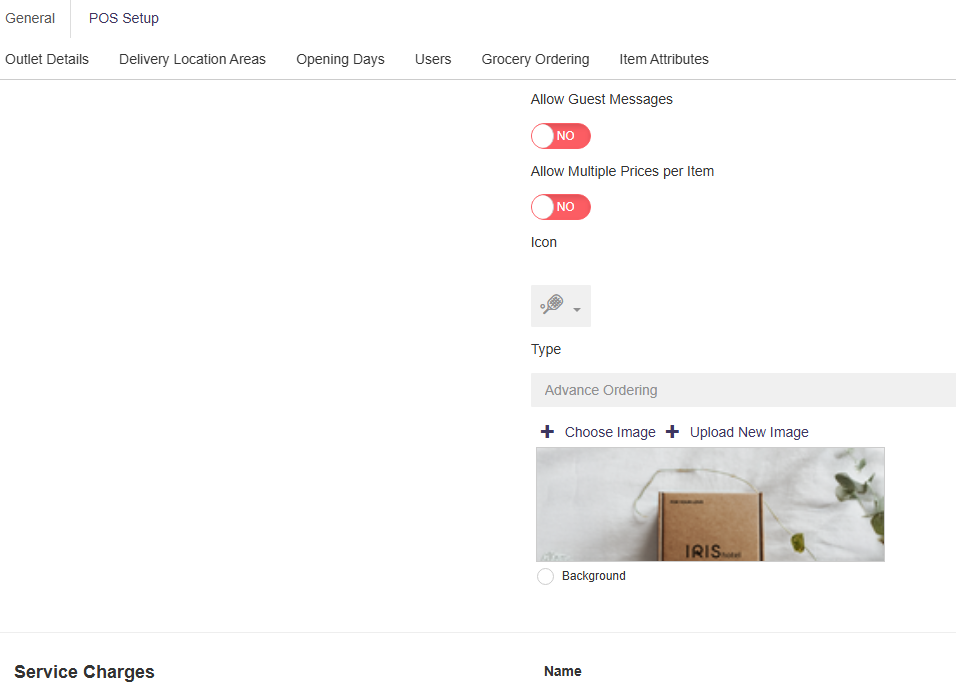
5. Set the Type to Advance Ordering
6. Save your changes
If you change the Type of an existing Outlet, you’ll be asked to confirm before the change is made. That’s the basics done. The sections below explain the rest of the settings so you can set the Outlet up the way you want.
Lead times and how far ahead guests can order
Lead Time (minutes) – The minimum notice your team needs before an order can be delivered. This sets the earliest date guests can choose. For example, if it’s 1:00 pm and your Lead Time is 12 hours, the first date guests can pick is tomorrow. With a Lead Time of 72 hours, it’s three days from today.
Maximum Advance Ordering Lead Time (Days) – How far ahead guests can order. This sets the latest date guests can choose. Enter any number from 1 to 366.
Items can have their own Lead Time too. If a guest has picked today and then adds an item that needs more notice, they’ll be asked to choose a new delivery date.
Ordering and delivery options
When you set the Type to Advance Ordering, some settings are switched on or off for you to get you started. You can change them if you need to.
Allow Deliver Later – This is set to Yes by default. Advance Orders are always placed for a future date, so this must stay on.
Note: If Allow Deliver Later is set to No, guests won’t be able to place orders on this Outlet.
Allow Deliver to Room – Set to Yes by default, so guests can have their order delivered to their room.
Hide Delivery Details Box – Set to Yes by default. This hides the delivery time, location and number of guests from the Cart, keeping checkout nice and simple.
Allow Tipping/Gratuity – Set to No by default. Turn this on if you’d like guests to be able to add a tip.
Allow Time Slots – Set to No by default. Time Slots limit orders per time window, so they aren’t usually needed for date-based orders.
Open Tab, Split Bill, Reservations and the Geo-fence Radius aren’t available for Advance Ordering Outlets, so these settings are hidden. Discounts can still be used as normal.
Opening days and delivery times
Outlet Opening Days – Tick the days you can deliver on. Guests can’t choose a closed day as their delivery date.
Hide Delivery Interval Times – When set to No, clicking an opening day lets you set the delivery times for that day. When set to Yes, clicking a day simply ticks or unticks it.
What your guests see
Your Advance Ordering Outlet looks just like an Order Outlet in Guest Web, but without the things that don’t apply to future orders – such as Call Waitstaff, Reservations, Open Tab and the delivery time options.
When ordering, guests pick a delivery date from a calendar. Closed days and dates outside your lead time settings are greyed out, so guests can only choose a date that works for you.
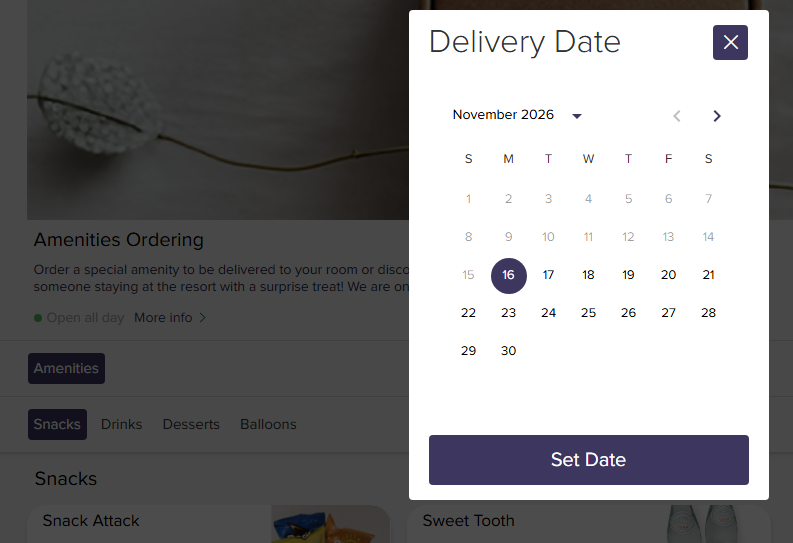
To show the Outlet in Guest Web, add it to a Section. Set the Section type to Outlet Content, choose AdvanceOrdering as the outlet type, then click Add Outlet.
Managing Advance Orders
Once you have an Advance Ordering Outlet, a new Advance Order Centres menu appears in IRIS Manager, between Order Centres and Service Centres.
It works just like the Order Centre, so you can view and manage Advance Orders in the same way. The badge next to the menu shows how many orders are waiting.
If a team member can’t see Advance Orders, check they’ve been added to the Outlet in the Users section and have access to Advance Order Centres.
Frequently asked questions
Why can’t guests choose today’s date?
Your Lead Time may be longer than the time left in the day, or the Outlet may be closed today. Check the Lead Time and Outlet Opening Days in Outlet Settings.
Guests can’t order far enough ahead. What should I check?
Increase the Maximum Advance Ordering Lead Time (Days). You can set this up to 366 days.
Guests can’t place an order. What should I check?
Make sure Allow Deliver Later is set to Yes. If orders still fail, contact IRIS Support.
I can’t find my Outlet when adding it to a Section. Why?
Make sure the outlet type in the Section is set to AdvanceOrdering. Only Advance Ordering Outlets show in that list.
Where do Advance Orders arrive?
In Advance Order Centres in IRIS Manager, rather than the Order Centre.
Related articles
- Creating and Setting Up an Order Outlet in GXP
- Using Deliver Later in GXP
- Using Custom Order Forms in GXP
- Using Timeslots in GXP
- Issuing a Refund in Order Centre