
Applies to IRIS Manager | Guest Room | Guest Mobile | Guest Web | Mobile Dining Overview
You can offer your eCompendium in more than one language so guests can read it in the language they prefer. Guests switch language by tapping the flag in the Side Menu.
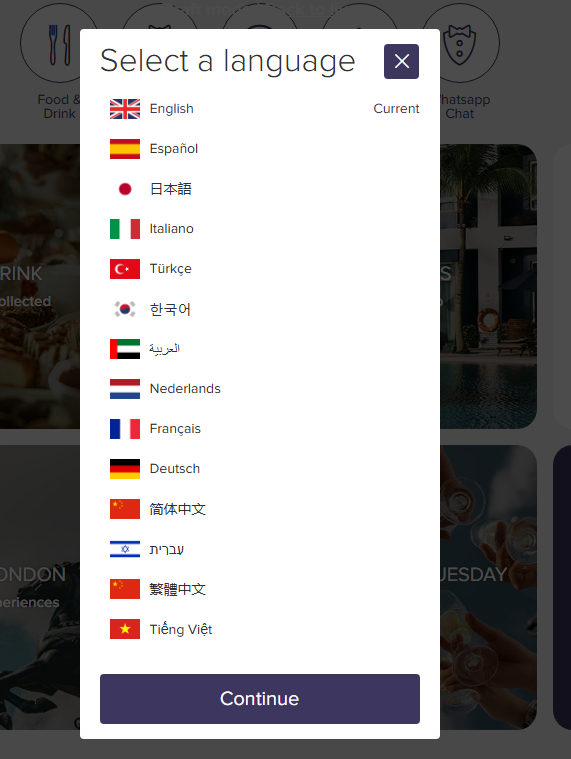
Finish building your eCompendium in English first. Once it’s final, add your translations – this saves you translating content twice.
TABLE OF CONTENTS
- Overview
- Step 1 – Turn on your languages
- Step 2 – Add your translations
- Using automatic translation
- Frequently asked questions
Step 1 – Turn on your languages
1. Go to Setup > System Operational Settings > Available Languages
2. Click Select next to each language you want to offer
3. Under Available Languages on the right, choose which language should be the default
4. Click Save
If the language you need isn’t listed, contact IRIS Support.
Step 2 – Add your translations
1. Go to Content Management > Translations
2. Click the Nothing selected box next to Content and choose what to translate – for example, Section
3. Click the Nothing selected box next to Language and choose the language
4. Click a piece of content in the Name column to open it
5. The English text shows on the left – type your translation in the boxes on the right
6. Click Save, then repeat for your other content
[Screenshot: Translate Section page with English on the left and translation boxes on the right]
Using automatic translation
To save time, click Auto Translate Selection at the top left of the Translations page to machine-translate your English content.
Warning: Always check machine translations before publishing. They’re a helpful starting point but are often less accurate than a human translation.
Frequently asked questions
Guests can’t see my new language. Why?
Check the language is activated in Setup > System Operational Settings > Available Languages.
Do I need a separate QR code for each language?
You can request one QR code per language, which we recommend for any dual-language printed materials. See Sharing Your eCompendium/Guest Directory with Guests.