
Applies to IRIS Manager | Guest Room | Guest Mobile | Guest Web | Mobile Dining Overview
The eCompendium is IRIS’s digital guest directory. It brings your outlets, facilities, services and local recommendations together in one attractive, easy-to-browse web page that guests open on their own phone or tablet.
Because it’s web-based, there’s nothing for guests to download – they simply scan a QR code or tap a link. The layout uses your logo, colours and tone of voice, so it feels like part of your property.
TABLE OF CONTENTS
- Overview
- Why use the eCompendium?
- How the eCompendium is organised
- Setting up your eCompendium – step by step
- Getting help
Why use the eCompendium?
- Keep guests informed – share opening hours, menus, activities and other property information in a branded format.
- Promote what you offer – highlight your restaurants, spa, events and other services to help drive extra revenue.
- Reach everyone – any in-house or day guest can open it by scanning a QR code.
- Available anywhere – guests can browse it from wherever they are on property.
- Easy to keep up to date – change content yourself at any time, with no reprinting.
How the eCompendium is organised
Your eCompendium content is built in three layers:
Layer | What it is | Example |
Section | A main area of the eCompendium, shown in the Side Menu | Discover the City |
Category | A group of content inside a Section (Categories can also have Sub-Categories) | Nightlife > Bars & Clubs |
Item | A single piece of content with text, an image and optional buttons | A local rooftop bar |
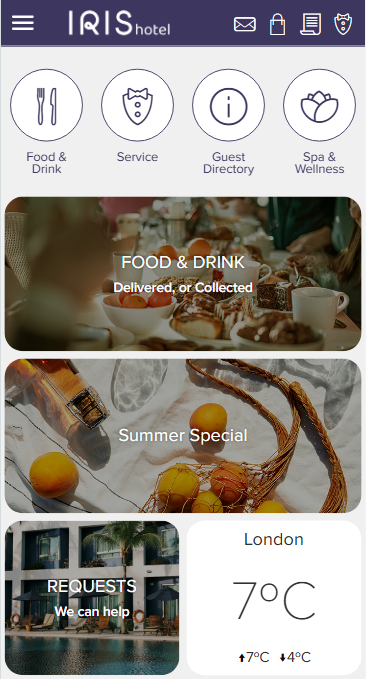
On top of this, the Homepage shows Shortcuts and Widgets (such as Banners and the Weather) to guide guests to your most important content.
Setting up your eCompendium – step by step
We recommend working through the guides below in this order:
1. Getting access – see Accessing and Previewing Your eCompendium/Guest Directory
2. Initial content – see Bulk Uploading Content to Your eCompendium/Guest Directory
3. Build and adjust content – see Creating Sections, Categories and Items in the eCompendium/Guest Directory
4. Add your images – see Adding Images to the eCompendium/Guest Directory Media Library
5. Link to menus, maps and more – see Adding Information Buttons to eCompendium/Guest Directory Items
6. Design your homepage – see Customising the eCompendium/Guest Directory Homepage and Side Menu
7. Add other languages – see Translating Your eCompendium/Guest Directory into Other Languages
8. Tell your guests – see Sharing Your eCompendium/Guest Directory with Guests
Look at your eCompendium on a mobile phone while you build it – that’s how most guests will see it.
Getting help
IRIS provides all technical support for the eCompendium. If you need a hand, contact IRIS Support at support@iris.net.