
Applies to IRIS Manager | Guest Room | Guest Mobile | Guest Web | Mobile Dining Overview
The homepage is the first thing guests see, so it’s worth making it eye-catching. You can customise it with Shortcuts and Widgets, while the Side Menu gives guests access to all your Sections.
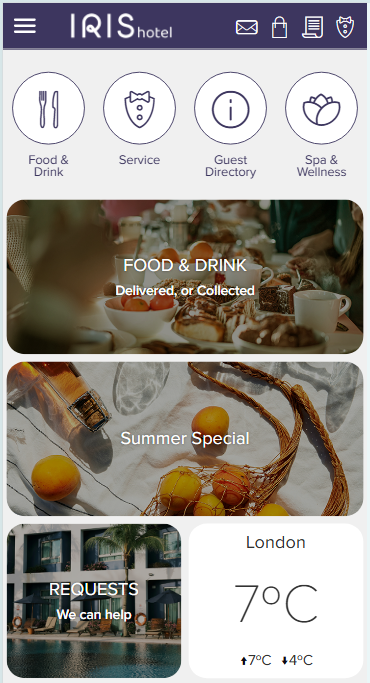
TABLE OF CONTENTS
The Side Menu
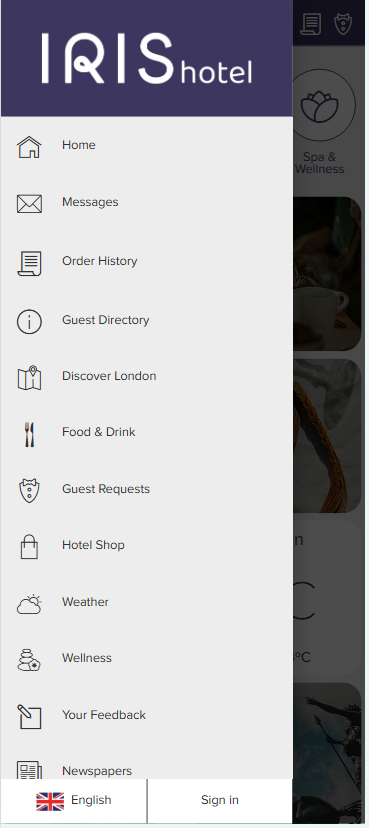
Guests open the Side Menu by tapping the menu icon at the top left of the homepage. It shows:
- Your list of Sections
- The language selector (if you offer more than one language)
- Sign in options, where available – once signed in, guests also see Order History and Messages
Sections appear in the Side Menu automatically when they’re set to visible. See Creating Sections, Categories and Items in the eCompendium/Guest Directory.
Shortcuts
Shortcuts are one-tap buttons shown only on the homepage. Each has an icon and a label, and can link to a Section, an Item or an external web address.
Tip: We recommend up to six Shortcuts so they display neatly on different screen sizes.
Widgets
Widgets are the tiles on your homepage. They come in two sizes – 2:2 (square) or 2:4 (wide rectangle).
Widget | What it does |
Banner | Shows an image with a short title and message, linking to a Section, Item or web address |
Advertising Stream | Rotates several Banners in one tile – ideal for offers and promotions |
Weather | Shows the current weather for your location and links to the full forecast |
Text | Shows a larger block of text – useful for a welcome message or notice |
Widgets are shown in the order they’re listed, starting at the top left. New Widgets are added to the bottom of the list.
Tip: For a clean, image-led homepage, use mostly Banner Widgets.
Related articles
- Creating Banner and Advertising Stream Widgets
- Adding a Weather Section and Widget to the eCompendium/Guest Directory