
Applies to IRIS Manager | Guest Room | Guest Mobile | Guest Web | Mobile Dining Overview
All eCompendium content is built from Sections, Categories and Items. Sections appear in the Side Menu, Categories group content within a Section, and Items hold the actual information guests read.
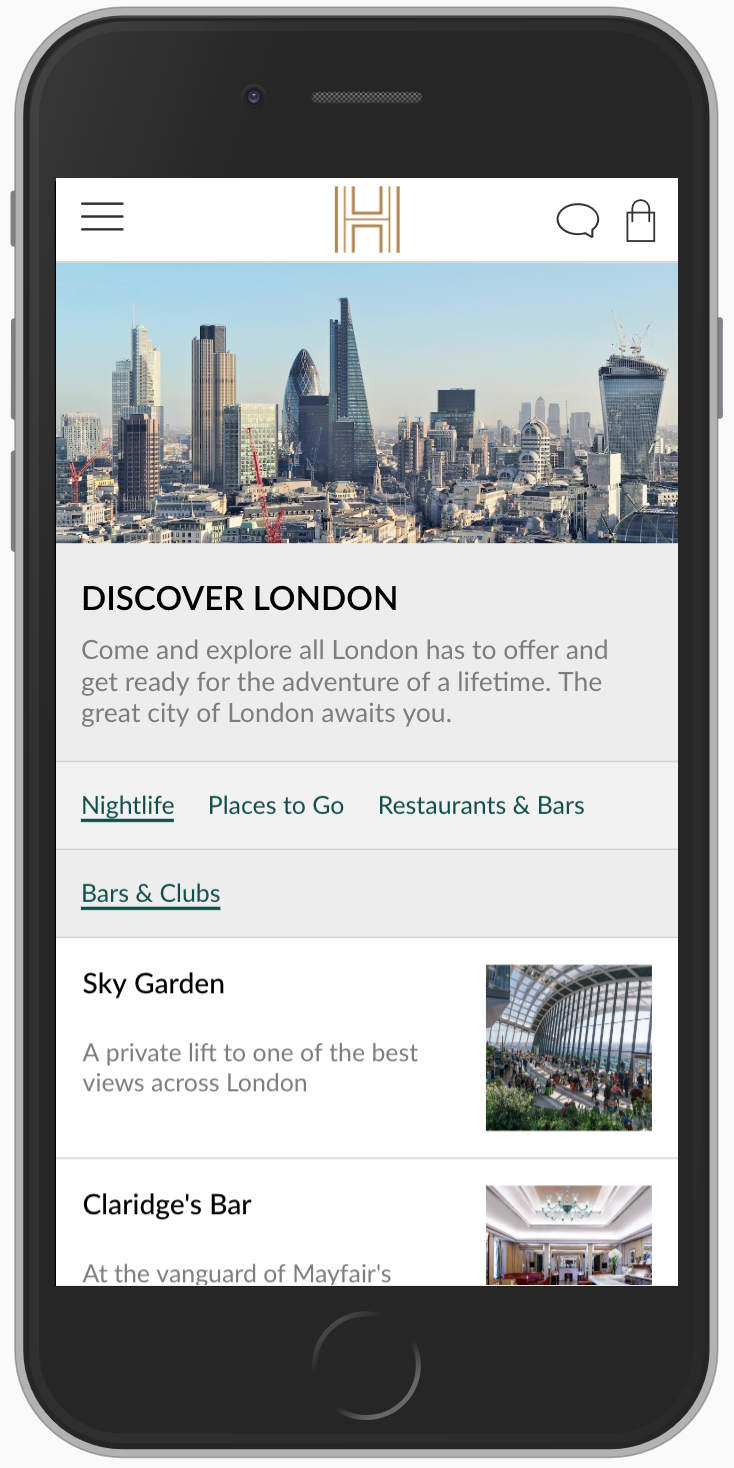
It’s usually quickest to create your Items first, then your Categories, then your Section – so you can link everything together as you go.
TABLE OF CONTENTS
- Overview
- Creating a Section
- Creating a Category
- Creating an Item
- Which type of Item should I use?
- Related articles
Creating a Section
1. Go to Content Management > Sections
2. Click + Add New Section at the top
3. Enter an Internal Name – this is only seen by your team, not guests
4. Choose an Icon to show next to the Section in the Side Menu
5. Enter the Section Name that guests will see
6. Set the Type to Standard
7. Set Is Visible to Yes
8. Click Save
Creating a Category
1. Go to Content Management > Categories
2. Click + Add New Category at the top
3. Enter an Internal Name and the Category Name that guests will see
4. Set the Type to Standard
5. Set Is Visible to Yes
6. To add Items, click + Add Item at the bottom of the page and move the Items you want into the right-hand column
7. Click Save
To create a Sub-Category, follow the same steps, then open the Parent Category option and choose the Category it should sit under.
To add Categories to a Section, open the Section, click + Add Category and move the Categories you want from the left into the right-hand column. Click Save.
Creating an Item
1. Go to Content Management > Items
2. Click + Add Item
3. Enter an Internal Name and the Item Name that guests will see
4. Choose the Type – Information or Direct Content (see below)
5. Set Is Visible to Yes
6. Add a Short Description and Long Description as needed
7. Click Save
To add Items to a Category or Sub-Category, open the Category, click + Add Items and move the Items you want into the right-hand column. Click Save.
Some Items are created at group or brand level. To edit one, open it and confirm when asked to create a local copy for your property.
Which type of Item should I use?
Information Items open a pop-out with an image, description and optional buttons. Direct Content Items take the guest straight to something – for example, a webpage or PDF – set using the Direct Content Type and URL fields at the bottom of the Item.
If you want to... | Use... |
Show a PDF menu or city map | An Information Item with a PDF button, or a Direct Content Item |
Show a pop-out with a description | An Information Item with buttons |
Let guests call or email you | An Information Item with a Webpage button |
Link to an external website | A Direct Content Item, or an Information Item with a button |
Show the weather | A Weather Section with a Weather Widget |
Show a rotating banner for offers or promotions | An Advertising Stream Widget |
Related articles
- Adding Images to the eCompendium/Guest Directory Media Library
- Adding Information Buttons to eCompendium/Guest Directory Items
- Creating Banner and Advertising Stream Widgets
- Adding a Weather Section and Widget to the eCompendium/Guest Directory