
Applies to IRIS Manager | Guest Room | Guest Mobile | Guest Web | Mobile Dining Overview
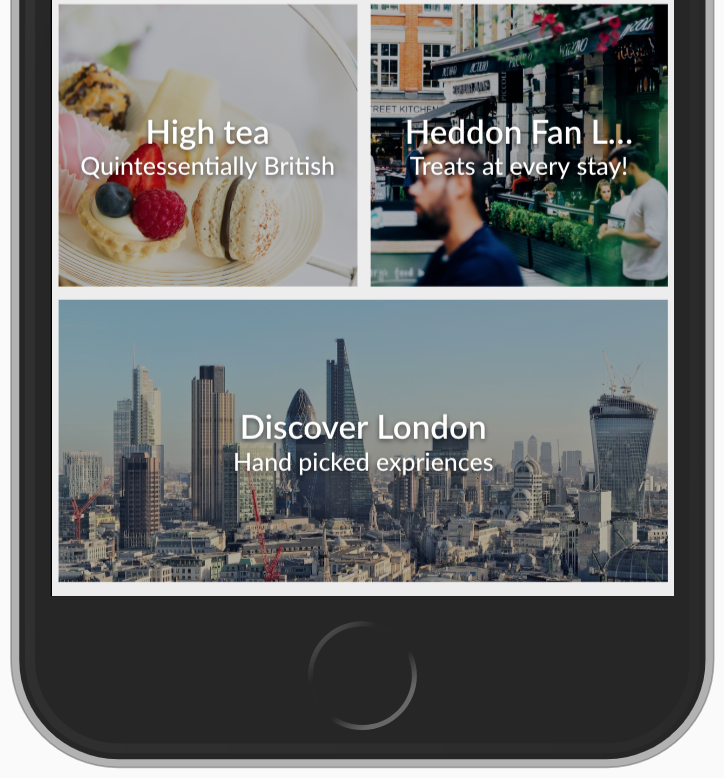
Banners are image tiles with a short title and message that link guests to your content. To show a Banner on the homepage, you create the Banner first, then add it to a Widget.
An Advertising Stream groups several Banners into one Widget that rotates automatically – great for promotions and limited-time offers.
Info: Before you start, upload your Banner images to the Media Library. See Adding Images to the eCompendium/Guest Directory Media Library.
TABLE OF CONTENTS
- Overview
- Step 1 – Create a Banner
- Step 2 – Add the Banner to the homepage
- Creating a rotating banner (Advertising Stream)
- Related articles
Step 1 – Create a Banner
1. Go to Content Management > Banners
2. Click + Add Banner
3. Enter an Internal Name
4. Enter a Title – this shows in larger, bold text. Keep it under 12 characters
5. Enter a Message – this shows in smaller text underneath. Keep it under 50 characters
6. Choose an Image from your Media Library
7. Choose an Action – link to a Section, an Item or a web address
8. Click Save
Banners can’t link directly to a Category. Link to the Section or an Item instead.
Step 2 – Add the Banner to the homepage
1. Go to Content Management > Homepage
2. Click + Add New Widget
3. Enter a Title – this is for your team only
4. In Widget Type, choose Banner
5. Choose a size – 2:2 (square) or 2:4 (rectangle)
6. In Action Parameter, choose your Banner and click Save
7. Back on the Homepage page, set the Widget to visible
Creating a rotating banner (Advertising Stream)
First, create the Banners you want to rotate (see Step 1), then:
1. Go to Content Management > Advertising Streams
2. Click + Add Advertising Stream
3. Enter an Internal Name
4. Choose Owned from the dropdown and click Save
5. Scroll to the bottom and click + Add Banner
6. Tick the Banners you want to include and click Save
To remove a Banner from the stream, click the X next to it.
Next, add the stream to your homepage:
1. Go to Content Management > Homepage and click + Add New Widget
2. Enter a Title for your team
3. In Widget Type, choose Advertising Stream
4. Choose a size – 2:2 or 2:4
5. In Action Parameter, choose your Advertising Stream and click Save
6. Set the Widget to visible
Advertising Streams rotate to the next Banner every 5 seconds.
Related articles
- Customising the eCompendium/Guest Directory Homepage and Side Menu
- Adding Images to the eCompendium/Guest Directory Media Library