
Applies to IRIS Manager | Guest Room | Guest Mobile | Guest Web | Mobile Dining Overview
Item Attributes are labels you add to menu Items, such as dietary choices, spice level or allergens. The Item Attributes Filter lets guests use these labels in IRIS Guest Web to quickly find the Items that suit them.
Each filter can either show Items with a chosen label (for example, only Vegetarian dishes) or hide Items with a chosen label (for example, anything containing Nuts).
The Item Attributes Filter is available on Order and Advance Order Outlets. It isn’t available on Service Outlets.
TABLE OF CONTENTS
- Overview
- Before you start
- How to turn on the filter
- Choosing how each filter works
- How guests use the filter
- Items without labels
- Using more than one filter
- Good to know
- Frequently asked questions
- Related articles
Before you start
The filter is built from the Item Attributes on your menu, so check you have the following in place:
- Item Attributes created – set up in Content Management > Item Attributes. See Item Attributes for how to create them.
- Attributes assigned to Items – at least one Item in the Outlet needs an Item Attribute, or the Filter button won’t appear.
- A Live Version published – changes to Items only reach guests once you publish a new Live Version in Setup > Versions.
Tag every Item in the Outlet with each Attribute you plan to filter by. The more consistent your labelling, the more accurate the results guests see.
How to turn on the filter
1. Log in to IRIS Manager and go to your Property
2. Go to Setup > Outlet Settings and select your Outlet
3. Turn on Display attributes filter for guests
4. Optional: turn on Auto-Open Item Attribute Filter Panel if you want the filter to open automatically when guests visit the Outlet
5. Save your changes
The Filter button only shows in Guest Web when this setting is on and at least one Item in the Outlet has an Item Attribute assigned.
Auto-opening the filter is a good way to put important choices, like allergens or dietary options, in front of guests before they start browsing.
Choosing how each filter works
When you create or edit an Item Attribute in Content Management > Item Attributes, you choose how it behaves in the filter:
Behaviour | What guests see | Works well for |
Include | “Show Items containing” – only Items with the selected options are shown | Dietary choices, e.g. Vegan, Vegetarian, Halal |
Exclude | “Hide Items containing” – Items with the selected options are removed from view | Allergens, e.g. Nuts, Gluten, Dairy |
You also choose a display style for the options: Blocks, Pills or Tick boxes. This only changes how the options look in the filter panel.
Attributes set to the Text style are shown on the Item itself but don’t appear in the filter.
How guests use the filter
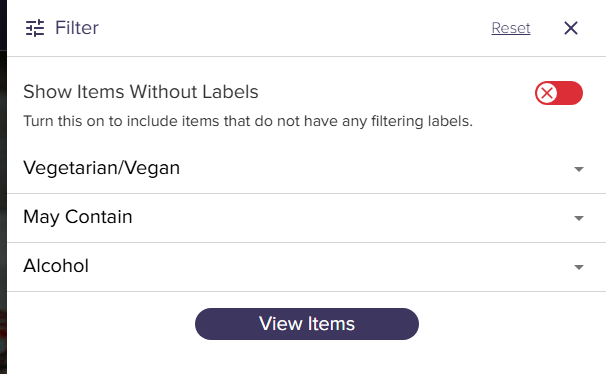
1. The guest opens the Outlet in Guest Web and selects the Filter button at the top of the page
2. A side panel opens listing each filter, such as Dietary, Spice or Allergens
3. The guest selects one or more options
4. The guest selects View Items, the X, or taps outside the panel – the menu then updates
The Filter button shows a badge with the number of options selected. Guests can select Reset in the panel to clear everything and start again.
Any Category with no matching Items is hidden. If nothing in the current Section matches, guests see a No Items Found message.
Items without labels
An Item without a label for the active filter is called an unclassified Item. For example, a guest filters by Spice “Mild”, but Buffalo Wings has no Spice Attribute at all.
The filter panel includes a toggle that lets guests choose whether unclassified Items are still shown or hidden. This works the same way for Include and Exclude filters.
Important: Guests may rely on the allergen filter when choosing what to order. An Item with no allergen labels isn’t hidden by an allergen filter unless the guest hides unclassified Items, so make sure every Item is labelled accurately and kept up to date.
Using more than one filter
Guests can use several filters at once. An Item is only shown if it passes every active filter.
Example: a guest shows Vegetarian (Dietary – Include) and hides Nuts (Allergens – Exclude).
Item | Dietary | Allergens | Shown? |
Mushroom Risotto | Vegetarian | Dairy | Yes |
Beef Burger | Meat | Gluten | No – not Vegetarian |
Pesto Pasta | Vegetarian | Nuts | No – contains Nuts |
Good to know
- Only options that are assigned to at least one Item in the Outlet appear in the filter. For example, if no Item is tagged “Hot”, guests won’t see a “Hot” option.
- Filters appear in the order set in GXP. Options inside each filter are listed alphabetically.
- Recommended and related Items also follow the guest’s active filters.
- Filters stay on while the guest browses the same Outlet. They’re cleared when the guest reloads the page, opens a different Outlet, or completes an order.
- The filter isn’t shown when ordering in staff mode.
Frequently asked questions
Why can’t guests see the Filter button?
Check Display attributes filter for guests is on in Setup > Outlet Settings, at least one Item in the Outlet has an Item Attribute, you’ve published a new Live Version, and the Outlet is an Order or Advance Order Outlet.
An option I created isn’t showing in the filter. Why?
Options only appear once they’re assigned to an Item in that Outlet. Also check the Attribute isn’t set to the Text style, as Text Attributes don’t appear in the filter.
A guest hid Nuts but still sees an Item with nuts. What should I check?
Make sure the Item has the Nuts option assigned in its Item Attributes, then publish a new Live Version. If the Item has no allergen labels, it will still show unless the guest hides unclassified Items.
I’ve updated my Attributes but guests can’t see the changes. Why?
Publish a new Live Version in Setup > Versions – click Add New Version, select Make Live, then click Create.
Still need help? Please raise a ticket with IRIS Support and include the Outlet name and the Items you’re checking.
Related articles
- Item Attributes
- Updating your Menu
- Creating and Setting Up an Order Outlet in GXP
- Using Open Tab in GXP