
Applies to
IRIS Manager | Guest Room | Guest Mobile | Guest Web | Mobile Dining
Open Tab lets guests order several rounds of food and drink to the same table, sunbed or seat, and pay for everything in one go at the end – just like running a tab at the bar.
Guests can settle the tab themselves by card in IRIS Guest Web, or pay a member of your team as normal. Each round is sent to your POS against the same check, so your team always sees one bill per location.
Open Tab is different to Pay on delivery / collection (pay later). Pay later creates a separate order each time, while Open Tab groups every round into a single bill that guests can pay online.
TABLE OF CONTENTS
- Before you start
- How to turn on Open Tab
- How guests use Open Tab
- Tips and discounts
- Good to know
- Optional extras
- Messages your guests might see
- Frequently asked questions
Before you start
Open Tab needs a little more setup than standard ordering. Check you have the following in place:
- An Order Outlet – Open Tab only works with Outlets set to the Order type.
- POS integration – the Outlet must be linked to a supported POS. Open Tab currently works with TS1, TS2, Toast and Infrasys.
- Delivery Locations with a POS ID – every table or location guests order to needs its own unique POS ID. Guests can’t open a tab at a location without one.
- A Custom Order Form – this must ask for the guest’s Name and Email Address.
Delivery Locations used for Open Tab shouldn’t be shared with any other Outlet.
How to turn on Open Tab
- Log in to IRIS Manager and go to your Property
- Go to Setup > Outlet Settings and select your Order Outlet
- Turn on Allow Guest Ordering
- Turn on Allow Open Tab
- Turn on Allow Pay Later Options – this lets guests pay their tab in Guest Web
- Turn on Allow Orders Using Custom Order Forms and choose your order form
- Turn on Allow Credit Card Payments so guests can settle the tab by card
- Save your changes
Not set up a Custom Order Form yet? See Using Custom Order Forms in GXP first.
How guests use Open Tab
Guest Web shows guests the right option automatically, so there’s only ever one choice on the payment page:
Start a new Open Tab – shown when the guest has items in their cart and there’s no tab open at their location yet. This replaces the usual pay later option.
Add to Open Tab – shown when the guest has items in their cart and a tab is already open at their location. The new round is added to the same bill.
Pay Open Tab – shown when the cart is empty and there’s a tab open at the location. The guest sees every round they’ve ordered and pays the total by card.
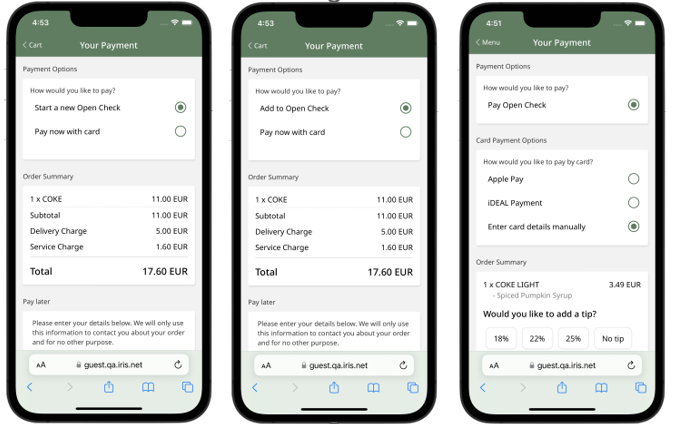
Guests can also use the Pay Open Tab button on the Outlet page, or open the order from their Order History, where it shows as Tab open until it’s paid.
Once the tab is paid in full, it closes. The next order at that location will start a brand-new tab.
Tips and discounts
• Tips – guests can only add a tip when they pay the tab, not when starting or adding to it.
• Discount codes – guests can only enter a discount code when paying the tab.
• Automatic discounts – these show at every step, whether starting, adding to or paying the tab.
Good to know
• One tab per location – each Delivery Location can only have one tab open at a time.
• Deliver to a location only – Open Tab can’t be used for Deliver to Room or Collection orders.
• Not compatible with Deliver Later – Open Tab orders are always placed for now (ASAP).
• Verified guests – guests signed in as a verified hotel guest can’t use Open Tab, as they can’t pay by card in Guest Web.
• Sharing a tab – anyone at the location can add to the tab, as long as they use the same email address.
• Paying in full – the whole tab (plus any tip) must be paid at once, unless Split Bill is turned on.
Optional extras
Once Open Tab is working, you can add these features to the same Outlet:
Split Bill – lets guests pay part of the tab at a time, so a group can each pay their share by card.
Card Pre-Authorisation – asks guests to enter their card details when they start a tab, so the payment is secured upfront. Available with FreedomPay and Adyen. Turn it on with Use Card Pre-Authorization for Open Tab in Outlet Settings.
Staff Ordering – lets your team find, add to and close tabs on behalf of guests.
Your IRIS Account Manager or IRIS Support can help you decide whether these extras are right for your Outlet.
Messages your guests might see
No open tab – the guest tapped Find Open Tab, but there isn’t a tab at their location. They can refresh to check again, in case someone else has just started one.
Cart not empty – the guest tried to pay their tab with items still in the cart. They’ll be asked to clear the cart first.
Multiple open tabs – more than one tab is open at the same location. The guest is asked to speak to a member of staff, who can tidy this up on the POS.
Invalid delivery location – the location doesn’t have a POS ID, or the guest chose Deliver to Room or Collection. Add a POS ID to the location, or ask the guest to choose a table.
Frequently asked questions
Why can’t guests see the Open Tab option?
Check all the settings in How to turn on Open Tab are switched on, that the Outlet type is Order, and that the guest has chosen a Delivery Location rather than Deliver to Room or Collection.
A guest paid but the tab still shows as open. What should I check?
This can happen if the total in Guest Web doesn’t match the total on the POS – even by 1p. Check the check on the POS and resync the Outlet if needed. If it keeps happening, contact IRIS Support.
Can a guest add a round and pay at the same time?
No. Guests add their final round first, then pay the tab once their cart is empty.
Can my team still close a tab at the till?
Yes. Tabs can always be paid through a member of staff on the POS as normal.