
Applies to IRIS Manager | Guest Room | Guest Mobile | Guest Web | Mobile Dining Item Attributes are a useful way to highlight important features of an Item, such as dietary preferences, spice levels, ingredients, or allergen warnings.
Guests can use Item Attributes to filter the menu and find suitable Items more quickly. Filters can support both inclusive choices, such as showing vegetarian Items, and exclusive choices, such as hiding Items that contain nuts or gluten.
TABLE OF CONTENTS
- Creating Item Attributes in GXP
- Controlling the Display Order
- Assigning Attributes to Items
- How Attributes Display to Guests
- Auto-Opening the Filter Panel
- Hide Unclassified Items
- Persistent While Browsing
Creating Item Attributes in GXP
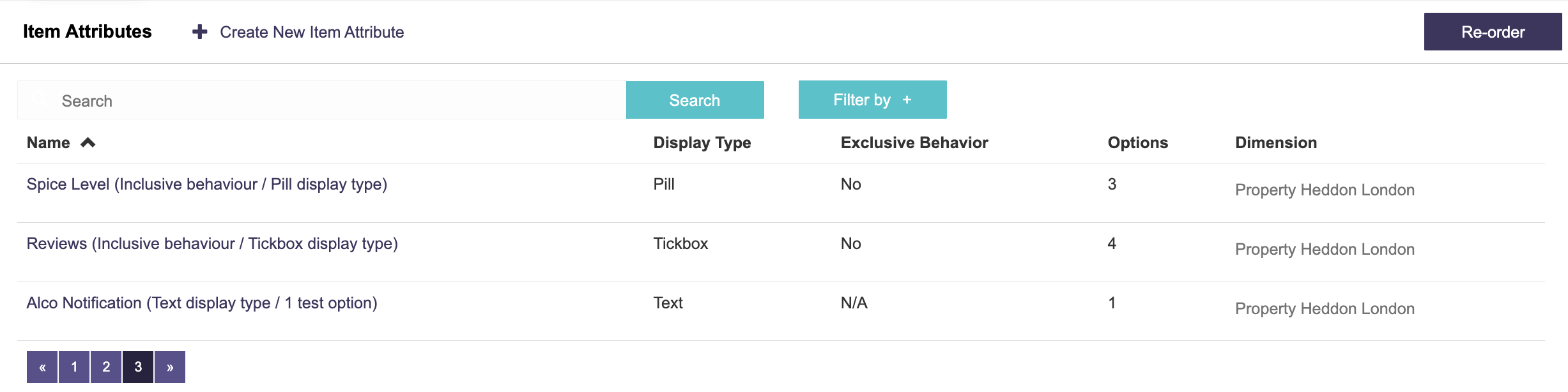
To create and configure an Item Attribute:
- Open the relevant Property in GXP.
- Navigate to Content Management > Item Attributes.
- Click + Create New Item Attribute.
- Enter an Internal Name, Display Name (required), such as “Allergy Information” or “Spice Intensity”, and Description (not required).
- Click Save and Options.
- Choose how the Item Attribute Options should be displayed to guests:
- Blocks
- Pills
- Tick boxes
- Text
- Configure the filter behaviour:
- Include: Show Items that contain the selected Attribute Options, such as Vegetarian or Vegan.
- Exclude: Hide Items that contain the selected Attribute Options, such as Nuts, Gluten, or other allergens.
- Add as many Options as required and click Save.
The selected display style should reflect the type of choice being presented. For example, dietary preferences may work well as blocks or pills, while allergen exclusions may be clearer as tick boxes.
Options are displayed in alphabetical order in the filter panel and item card, except for Text options, which are displayed in the order in which they were created.
Example
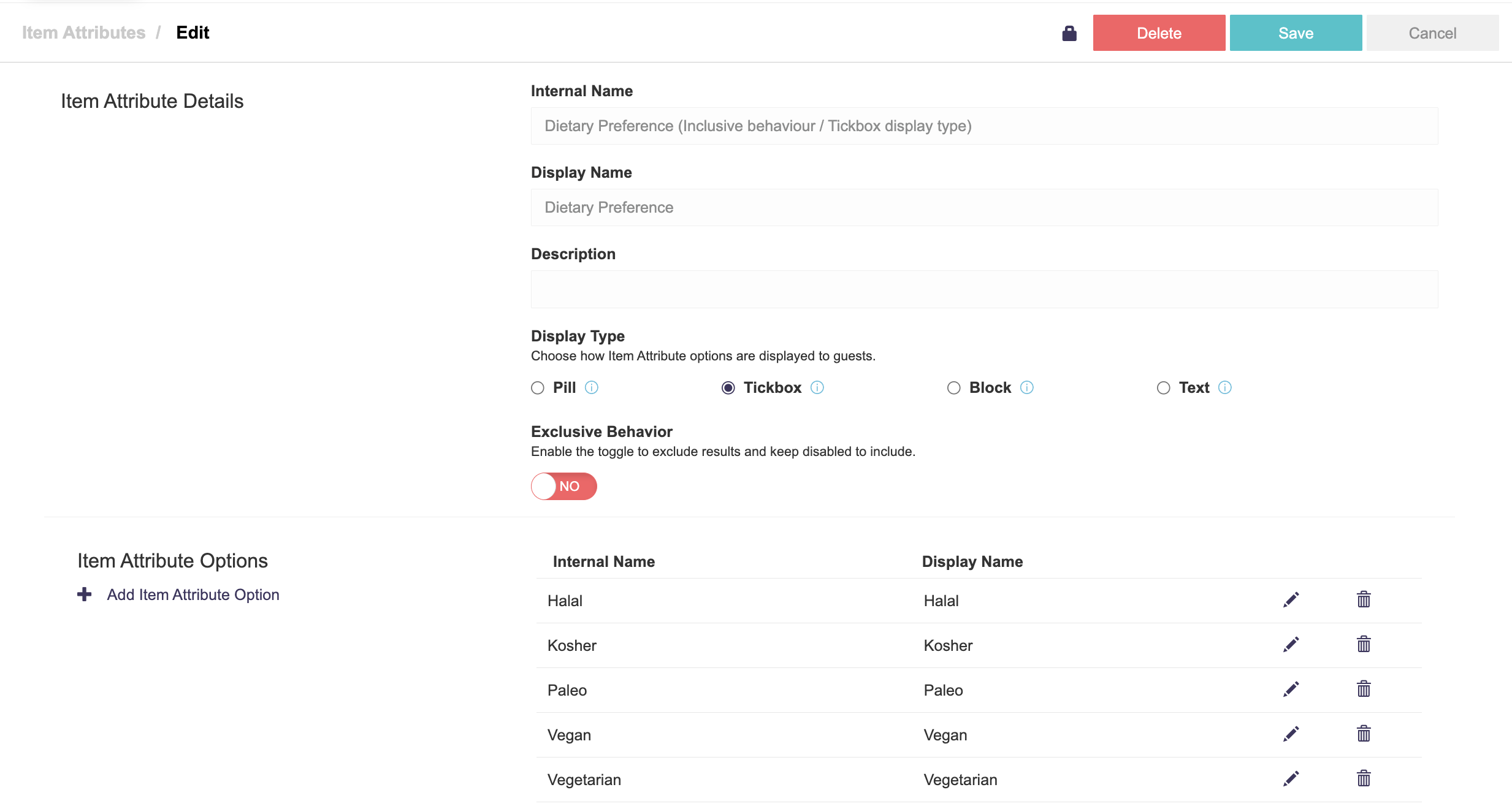
A “Dietary” Item Attribute might include the following Options:
- Vegan
- Vegetarian
- Meat
- Pescatarian
An “Allergens” Item Attribute Options might include:
- Nuts
- Gluten
- Dairy
- Shellfish
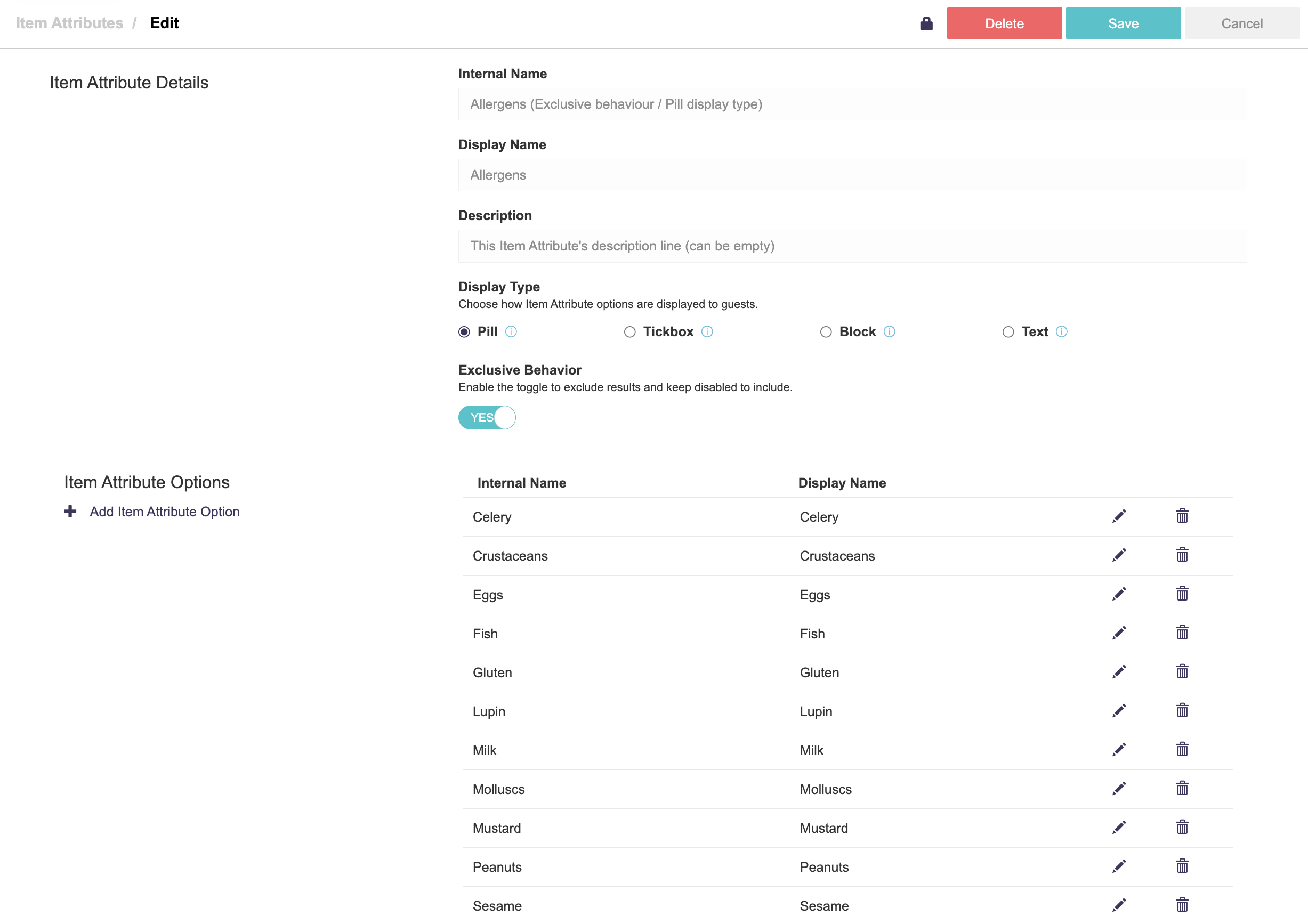
The Dietary filter could be configured to include matching Items, while the Allergens filter could be configured to exclude matching Items.
Controlling the Display Order
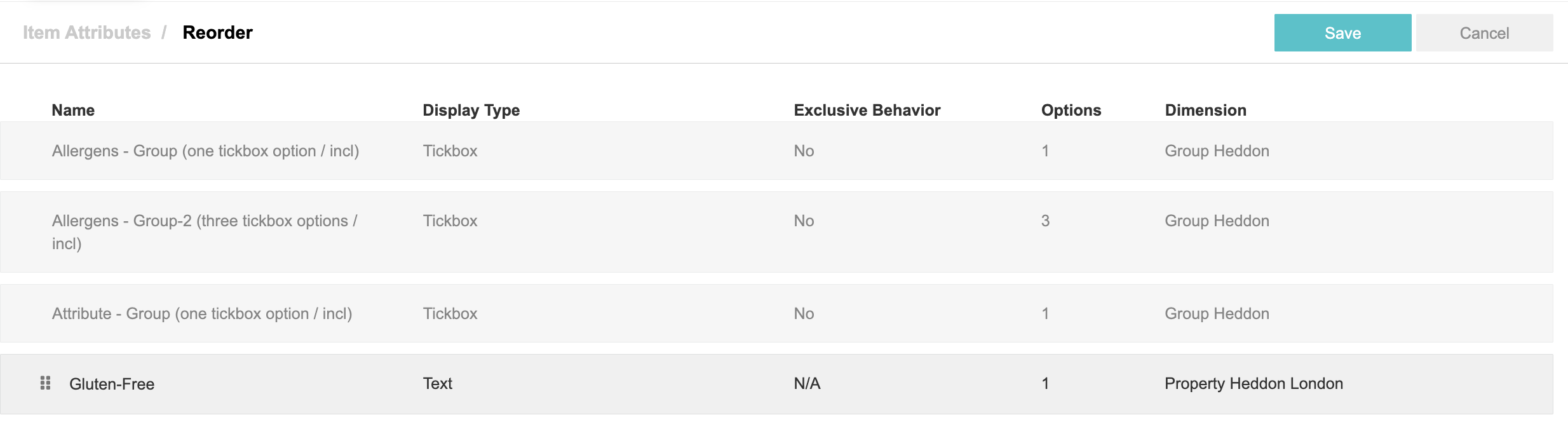
Item Attributes and their Options appear in the guest-facing filter according to their configured sort order in GXP.
Operators can use the sort order to place the most important filters and Options first, such as allergen information or commonly selected dietary preferences.
Assigning Attributes to Items
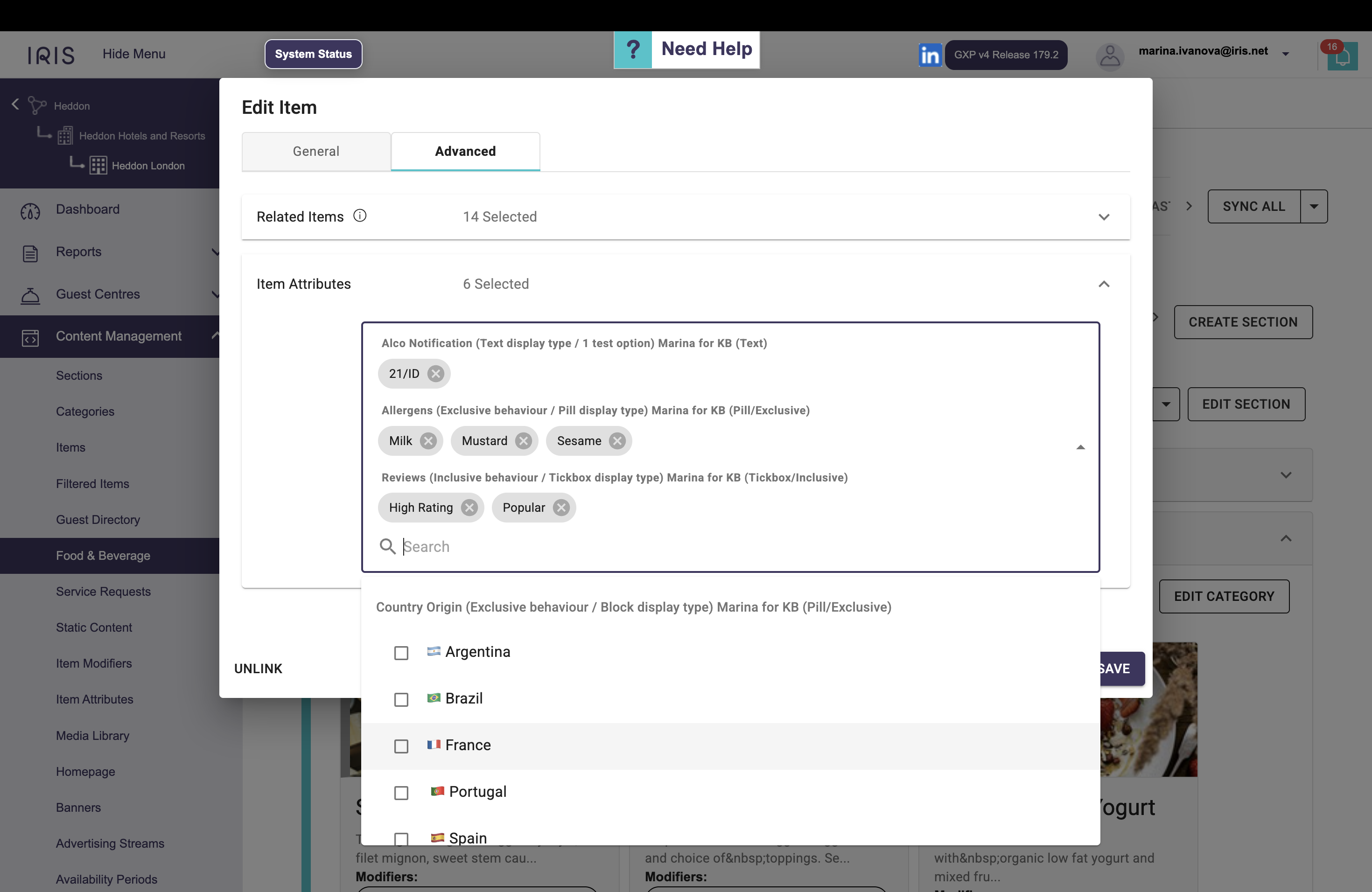
After creating Item Attributes, assign them to the relevant menu Items:
- Navigate to Content Management > Food and Beverage
- Locate the required Item, open it, and select the Advanced tab
- Click on the Item Attributes section
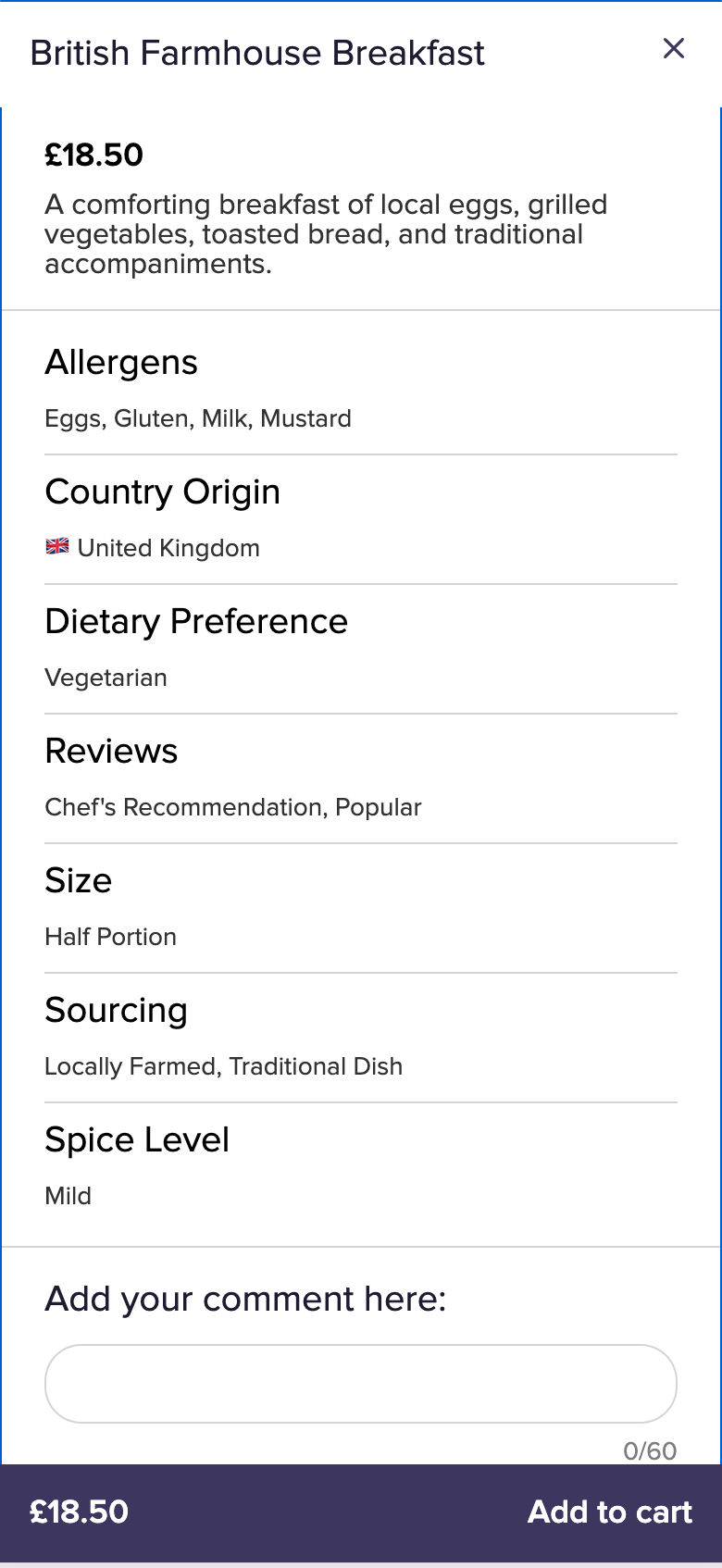
- Select the relevant Item Attribute and its Option or Options
- Save the Item

2. Publish a Live Version by navigating to Setup > Versions
- Click Add New Version
- Select Make Live, then click Create
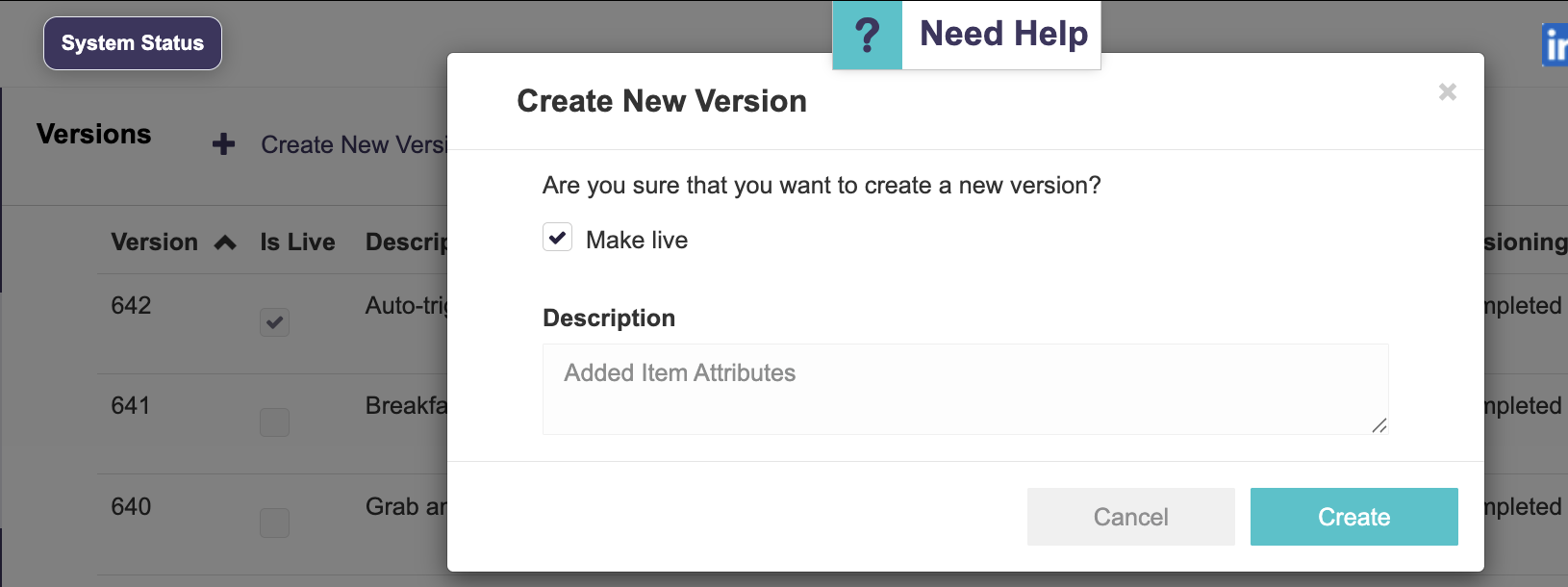
Once published, the assigned Attributes can be used by guests to filter the menu.
How Attributes Display to Guests
Guest Web
On Guest Web, which is the browser-based ordering experience, a Filter button appears at the top of the Outlet page when:
- The Display attributes filter for guests is enabled in Setup > Outlet Settings
- At least one Item in the Outlet has an Item Attribute applied to it
Selecting the Filter button opens a side panel with available Attribute Filters, such as Dietary, Spice, and Allergens.
The display style configured in GXP is used for each filter. Depending on the setup, Options may appear as blocks, pills, or tick boxes.
Guests can select one or more values to narrow down the Item list.
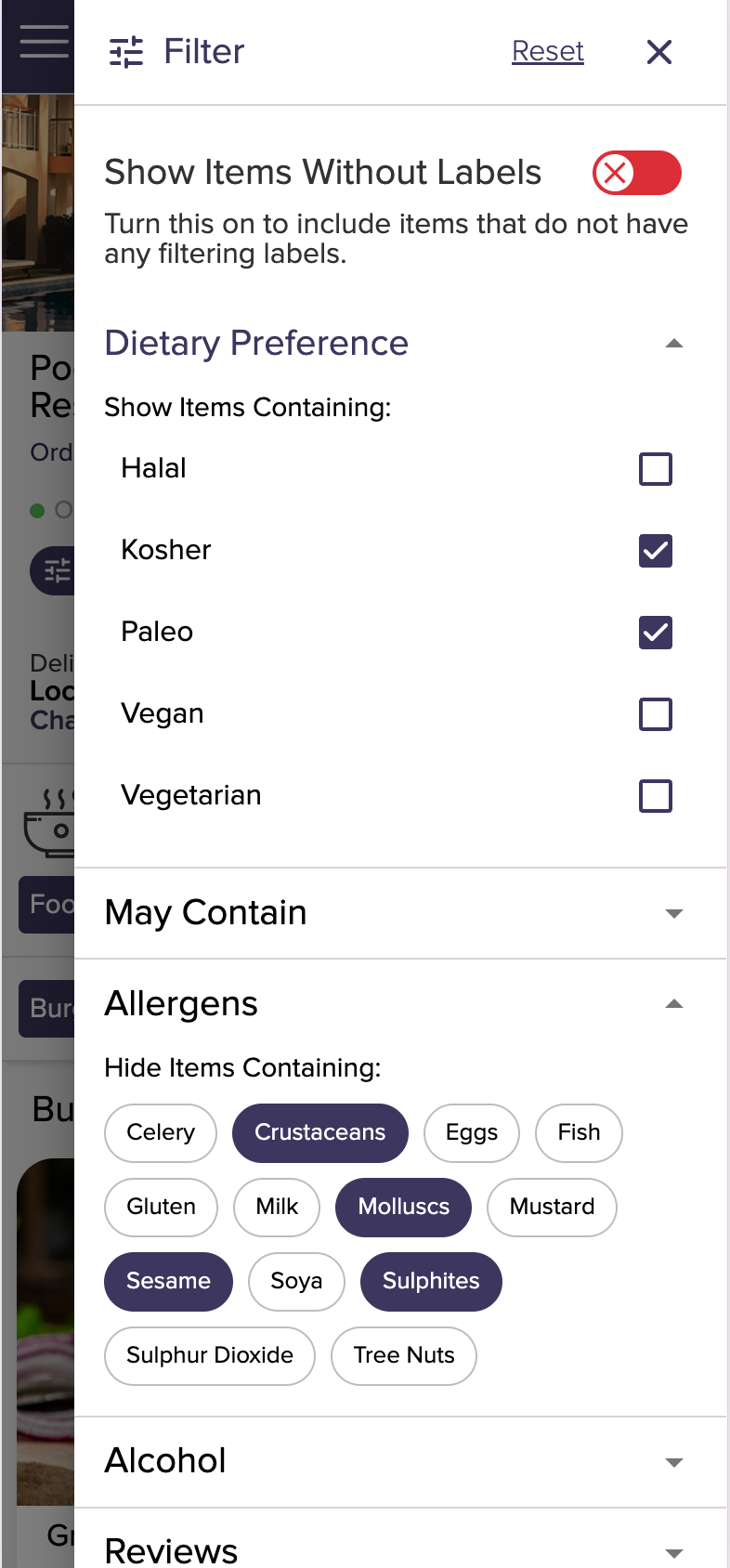
Inclusion Example
When “Vegetarian” is selected in an inclusive Dietary filter, the menu updates to show Items tagged as Vegetarian.
Exclusion Example
When “Nuts” is selected in an exclusive Allergens filter, Items tagged as containing Nuts are hidden from the menu.
This allows guests to use the same filtering experience both to find Items they prefer and to remove unsuitable Items from view.
Applying Filters
The Filter button displays a badge showing the number of active filter values.
The Item list updates after the guest closes or applies the filter panel by:
• Selecting Apply
• Selecting the X
• Clicking outside the panel
Auto-Opening the Filter Panel
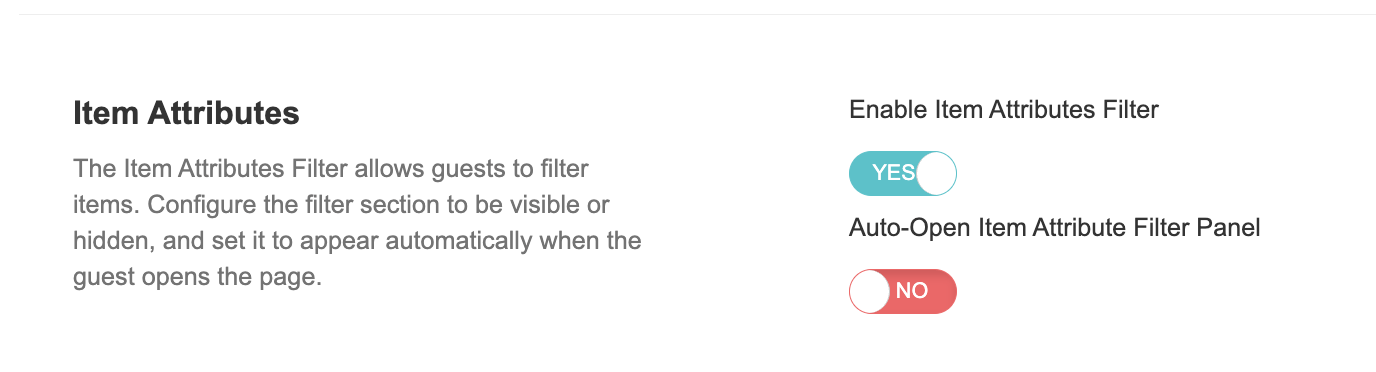
The Auto-Open Item Attribute Filter Panel setting is supported in GXP > Outlet Settings.
When enabled, the Item Attributes Filter side panel opens automatically when a guest visits the Outlet.
This can help present important information, such as dietary options, allergens, or guest preferences, before the guest begins browsing the menu.
Hide Unclassified Items
The filter panel can include a Hide Unclassified Items toggle.
This setting controls whether Items without an Attribute value for the selected filter are displayed.
Example
A guest selects “Mild” under the Spice filter, but Buffalo Wings does not have a Spice Attribute assigned.
• Toggle ON — Hide unclassified Items: Buffalo Wings is hidden.
• Toggle OFF — Show unclassified Items: Buffalo Wings remains visible.
By default, unclassified Items are shown.
This behaviour is separate from exclusion filtering. An exclusive filter hides Items that have a selected Attribute, while the Hide Unclassified Items toggle controls Items that have no relevant Attribute classification.
Persistent While Browsing
Selected filters remain active while the guest browses within the same Outlet.
Filters are cleared when:
• The guest reloads the page or opens a different Outlet.
• An order is successfully completed.